 Hydra Mixer Wiki & Tutorial
Hydra Mixer Wiki
Hydra Mixer is a virtual audio mixer for Windows built for the lowest possible latency, an alternative to Voicemeeter Potato. This page walks you through the setup step by step and explains every feature for later reference.
Where do I start?
New here?
The tutorial takes you from download to your first mix in 10 minutes.
Coming from Voicemeeter?
Import your settings and learn the differences.
Got a specific goal?
Recipes: stream mix, clean up a mic, bring in Spotify …
Having a problem?
No sound, crackles, yellow dots: solutions.
1Installation
- Download
HydraMixer-0.6-win64.zipfrom the Releases page. - Unzip it anywhere, e.g.
C:\Tools\Hydra Mixer. There is no installer and no runtime to install. - Start
Hydra Mixer.exe. On first start Hydra picks a default device. Then choose your master device in the Settings.
Requirements
- Windows 10 or 11, 64-bit.
- A CPU with AVX2 (practically every Intel CPU since 2013 and AMD CPU since 2015).
- Recommended: an audio interface with an ASIO driver. Without ASIO, Hydra works with Windows audio (WASAPI), with somewhat higher latency.
Building from source
You need the Visual Studio 2026 Build Tools (MSVC, C++ workload), CMake 3.25 or newer and Ninja.
git clone --recursive https://github.com/TicT4x/Hydra-Mixer.git
cd Hydra-Mixer
.\build.ps1                # Release
.\build.ps1 -Config Debug
The app ends up in build\Release\HydraMixer_artefacts\Release\Hydra Mixer.exe, the tests in build\Release\HydraTests_artefacts\Release\HydraTests.exe.
2Tutorial: first steps
In this tutorial you set up a typical mix: microphone and game/music in, headphones and stream out.
Step 1: choose the master device
- Click the gear at the top right (or the status text with the driver name in the top bar). Settings → Audio Engine opens.
- Under Driver choose ASIO and your interface below it. Without ASIO, use Windows Audio (Low Latency Mode).
- Set the Sample rate (usually 48000) and the Buffer size. Smaller buffer = less latency but more CPU load. With ASIO the buffer size is often set in the ASIO Control Panel.
- Click Apply / Restart.
Step 2: put the microphone on an input
- In the first input strip, click the device chip below the channel name. The device picker opens.
- On the left choose Master (or Hardware), on the right your microphone's channel, e.g. Mono 1. A click applies it right away, a double-click applies and closes.
- Speak into the microphone. The level meter in the strip moves. If it is too quiet, turn the GAIN knob at the top of the strip.
- Double-click the channel name to rename it, e.g. to “Mic”.
Step 3: bring in a game or music
- Open the device picker of the second input and choose Application.
- Choose the app, e.g.
Spotify.exe. The list only shows apps that are playing audio right now. If it is missing, start playback and click Refresh. - So you don't hear the app twice, set its output in Windows Settings → System → Sound → Volume mixer to a device you don't listen to.
Alternatives: Loopback captures everything Windows plays on a playback device. More under Virtual devices.
Step 4: set up the outputs
- On the right you see the Hardware Outputs (A1, A2, …) and the Virtual Outputs (B1, B2, …).
- On bus A1 click the device chip and choose your headphones or speakers.
- For a stream mix, send B1 e.g. to a virtual cable that OBS records as a microphone (see Virtual devices), or record B1 with the Recorder.
Step 5: routing
- Every input strip has routing buttons A1 A2 A3 … and B1 B2 …. A lit button means: this input goes to this bus.
- For the microphone, turn on e.g. B1 (stream); for the music A1 and B1 (you hear it, the stream too).
- Use the faders to set the volume. Clicking the dB value below a fader lets you type a value, e.g.
-6.
Step 6: improve the microphone
- Click the mic strip. Its effects appear in the Inspector at the bottom.
- Turn on the Denoiser (removes fans, keyboard, hiss).
- Optional: EQ with a low cut at about 80 Hz, Gate with Voice Key, Compressor with Auto Gain.
3Core concepts
Inputs, hardware and virtual outputs
| Term | Count | Meaning |
|---|---|---|
| Input (IN 1–16) | up to 16, default 8 | A signal source: microphone, interface channel, app, loopback, virtual cable. Every input has its own effect chain. |
| Hardware Output (A1–A8) | up to 8, default 5 | An output bus, usually to real outputs (headphones, speakers). |
| Virtual Output (B1–B8) | up to 8, default 3 | A bus for mixes you don't listen to directly: stream, recording, Discord. Can also be sent to a device (e.g. a virtual cable). |
A and B buses work the same way technically. The differences are the grouping in the interface, the Recorder records B buses, and monitoring replaces an A bus.
Signal flow
Every input runs through this chain, in this order:
Every bus sums the routed inputs and processes them further:
The master device as the clock
Every audio device has its own clock, and no two clocks run at exactly the same speed. Hydra solves this like this:
- The master device (ideally ASIO) is the only clock. Its channels add no extra latency.
- All other devices are attached through a ring buffer and a resampler. A self-tuning drift compensation keeps adjusting the sample rate very slightly so the buffer never runs empty or overflows. This costs a few milliseconds of latency.
- Several channels of the same interface stay sample-accurate to each other.
Automatic saving
Every change is saved to session.xml after about 2 seconds. A backup is also made at every start (up to 40). See Backup & Transfer.
4Main window overview
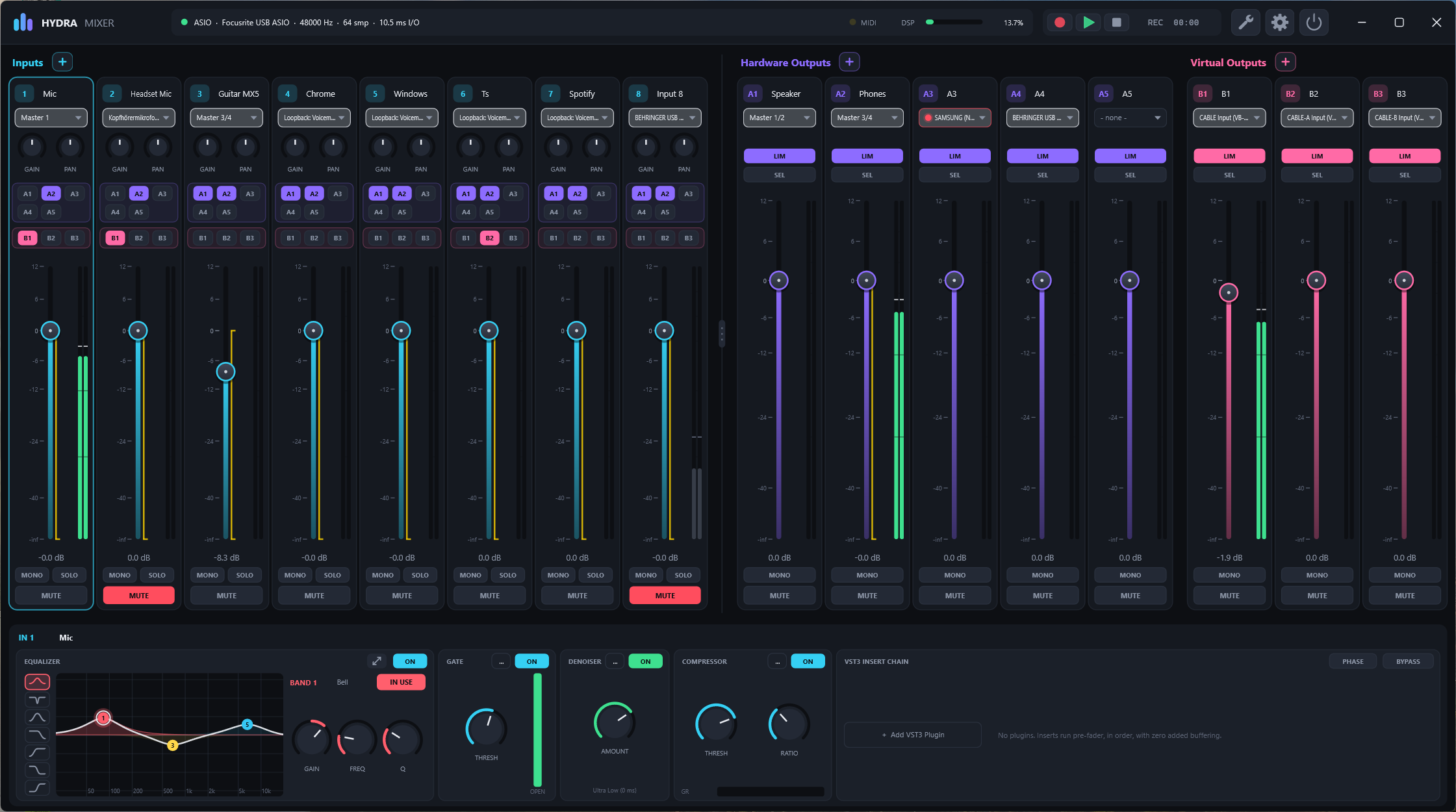
The main window has three areas:
| Area | Position | Contents |
|---|---|---|
| Top bar | top | Logo, audio engine status, mini recorder, tools, DSP meter, settings, shut down, window buttons. The top bar is also the title bar: drag an empty spot to move the window. |
| Strips | middle | Inputs on the left, hardware and virtual outputs on the right. Both sides scroll sideways independently. |
| Inspector | bottom | The effects of the selected channel (denoiser, EQ, gate, compressor, VST3, limiter) or the recorder. |
At start the window becomes exactly as wide as needed to show all strips side by side. Interface and text size can be set in Settings → General (75–200 %).
5Top bar
| Element | Function |
|---|---|
| Logo & status text | Shows driver and master device. A click opens Settings → Audio Engine. If the engine is stopped, it says so here. |
| Mini recorder | Record, play/pause, stop. When space gets tight it turns into a cassette icon that opens the recorder. |
| Wrench (Tools) | Menu with Scene Editor, MIDI Learn Mode, MIDI Map, Latency Finder, Sync Delay, DSP Load, Recorder and Restart Audio Engine. In learn mode the wrench turns yellow. |
| DSP meter | Share of the available processing time per audio block. A click opens DSP Load. |
| Gear | Opens the Settings. |
| Power | Shuts down Hydra Mixer (with confirmation). Important when the close button only hides to the tray. |
6Strips
Input strip
From top to bottom:
- Name: double-click to rename.
- Device chip: the current source. A click opens the device picker. Coloured dots left of the name show problems (see below).
- GAIN: input gain before all effects.
- Routing buttons: A1, A2, … and B1, B2, … (three per row, only buses in use).
- MONO, SOLO, MUTE.
- Fader with level meter and dB display, pan below.
A click anywhere in a strip selects it in the Inspector. When a channel is muted or silenced by solo, the meter shows in grey the level it would have without mute.
Bus strip
Name, output device, SEL (see SEL & monitoring), MONO, MUTE, fader with meter.
Status dots on the device chip
| Dot | Meaning |
|---|---|
| Red | Device offline (unplugged, in use or failed). |
| Yellow | Dropouts in the last 2 minutes, or a notice: waiting for the app, “Hydra Virtual” without a driver. |
Hover over the dot: the tooltip explains the problem, for dropouts with count and age (“12 s ago”).
Dividing the space
Between inputs and outputs there is a divider. Drag it to shift the space, double-click for the default split. The mouse wheel scrolls the strips sideways. If the window is too low, the strips are scaled down instead of scrolling vertically.
7Using controls
All faders, knobs and switches work the same way:
| Action | Effect |
|---|---|
| Drag | Change the value. With Shift for fine control. |
| Click on the fader track | The fader glides to this position (not with Shift). |
| Mouse wheel | Change the value step by step. With Shift smaller steps. |
| Double-click | Reset to the default value. |
| Click the value below the control | Text field to type a value, e.g. -6, 2.5k, -inf. |
| Right-click | Context menu: MIDI Learn, Clear MIDI Mapping, MIDI Range (calibrate), Assign Keyboard Shortcut... (switches), Reset to Default. |
Every control can be driven by MIDI, every switch also by a keyboard shortcut.
8Managing channels
Adding
Click the + next to the heading Inputs, Hardware Outputs or Virtual Outputs. The next free slot is activated (max. 16 inputs, 8 A and 8 B buses).
Renaming and removing
Right-click the header or background of a strip → Rename or Remove. Removing resets the channel's settings, plugins, MIDI mappings and shortcuts (with confirmation). At least one input and one A bus always remain.
Changing the order
- Right-click a strip → Change Order.... A bar with Done and Discard appears above the strips.
- Drag the strips within their group (inputs, A buses, B buses) to the place you want.
- Done (Enter) applies, Discard (Esc) throws it away.
A channel gets the number of its new position. For buses, routing, sends, recorder and monitor settings move along. If MIDI mappings or shortcuts sit on moved channels, Hydra asks:
- Follow the channels: your controller keeps controlling the same channels, now at their new position.
- Keep positions: every hardware control stays on its position (fader 1 still controls strip 1, which is now a different channel).
Afterwards the undo history is cleared.
9Device picker
Clicking the device chip of a strip opens the Input source or Output device window. It has three columns: Connection → Device → Channels. Below them is an explanation of the selected connection type. At the top, “Now: …” shows the current choice.
| Connection type | Used for | Latency |
|---|---|---|
| None | The strip receives nothing, or the bus is mixed but not sent anywhere. | – |
| Master / Hardware | Channels of the master device. | lowest, no extra buffer |
| Other ASIO Devices | A second ASIO interface, synchronised to the master clock. | low, plus clock sync buffer |
| Windows Audio (Low Latency) | Windows devices in shared mode with a small buffer. | low |
| Windows Audio (Exclusive) | Exclusive access to the device. Other apps can't use it meanwhile. | lowest with WASAPI |
| Shared (compatibility) | Classic shared mode for devices that can't do anything else. | higher |
| Application (inputs only) | The audio of exactly one app including its child processes; reconnects automatically when the app restarts. | medium |
| Virtual Cable | VB-CABLE or Virtual Audio Cable, if installed. | medium |
| Loopback (inputs only) | Everything Windows plays on a playback device. | medium to higher |
How to use it
- A click on a channel applies it right away, the window stays open. A double-click applies and closes.
- Devices with only one option (apps, cables, loopback) are chosen with the click on the device.
- Dots mark the path to the current choice, a tick marks the current channel.
- Channels come as stereo pairs (Stereo 1/2, …) or mono.
- Refresh rescans devices and apps. Esc, Enter or Done close the window.
- The window follows the strip you clicked last, so you can set up several channels one after another.
10Inspector
The inspector at the bottom shows the effects of the selected channel side by side in an effect rack that scrolls sideways as a whole. Each section has an on switch at the top (e.g. EQ ON, GATE ON). The main controls are visible directly, everything else is in the … menu (More settings).
| Channel | Sections |
|---|---|
| Input | Denoiser · Equalizer · Gate · Compressor · VST3 Insert Chain (with PHASE and BYPASS in its header) |
| Bus | Equalizer · VST3 Insert Chain · Limiter |
| Recorder | Record Source · Recording · Play To (see Recorder) |
11Denoiser
Every input has a built-in noise suppressor based on RNNoise, a neural network for speech. It removes fans, keyboard clatter, hum and room noise. It is off by default.
Controls
| Control | Meaning |
|---|---|
| DENOISER ON | On/off. |
| AMOUNT | Mix of the original and the denoised signal. Both are aligned exactly in time, so there are no comb-filter effects. |
| Latency mode (in the … menu) | See table. |
| Mode | Latency | Note |
|---|---|---|
| Ultra Low | 0 ms | No delay; word onsets can suffer slightly. |
| Low (default) | 10 ms | Good compromise for live speech. |
| Aligned | 20 ms | Better quality. |
| Native HQ | 30 ms | RNNoise's original behaviour, best quality. |
Cost: about 1.8 % of one CPU core per stereo channel.
12Equalizer
Inputs and buses have the same parametric EQ with 8 bands. A band is only visible (as a coloured point) while it is in use. A new channel starts without points.
Working with the curve
| Action | Effect |
|---|---|
| Hover near the curve | A ghost point shows where a new band would appear. |
| Click an empty spot | New band (Bell) at that spot. |
| Drag a point | Frequency (horizontal) and gain (vertical). |
| Mouse wheel over a point | Quality (Q). |
| Double-click / right-click a point | Remove it or change its type. |
| Type bar + knobs | Type, GAIN, FREQ, Q of the selected band, Remove to delete it. |
Filter types
| Type | Effect | Typical use |
|---|---|---|
| Bell | Boost/cut around a frequency. | More voice presence (+3 dB at 3 kHz), less boom (−4 dB at 250 Hz). |
| Notch | Very narrow cut. | Remove hum (50/60 Hz) or a whistle. |
| Band Pass | Only one frequency range remains. | Telephone/radio effect. |
| High Cut | Removes high frequencies. | Hiss, noise. |
| Low Cut | Removes low frequencies. | Rumble, mic pops (about 80 Hz). |
| Low Shelf / High Shelf | Boost or cut everything below/above a frequency. | Overall bass or treble. |
Q range 0.1–100, gain ±18 dB.
Large EQ window
The arrow button in the EQ header opens a separate window with a large curve, all bands with their values and a live spectrum of the signal after the EQ (scale on the right in dBFS). The window follows the selected channel. The spectrum is only computed while the window is open.
13Gate & Voice Key
A gate silences the channel while the signal stays below a threshold, e.g. so the microphone doesn't transmit background noise between sentences.
| Control | Meaning |
|---|---|
| THRESHOLD | Level at which the gate opens. |
| RANGE | How much it attenuates when closed (e.g. −80 dB = practically silent, −10 dB = just quieter). |
| ATTACK | How fast the gate opens. |
| HOLD | How long it stays open at least. |
| RELEASE | How fast it closes afterwards. |
| SIDECHAIN BP + SC FREQ | The gate only “listens” to one frequency range, e.g. to ignore low hum. |
| VOICE KEY + VOICE THR | The gate only opens when the level is above THRESHOLD and the denoiser detects speech (probability above VOICE THR). |
14Compressor
The compressor evens out volume differences: loud parts are turned down, the result is more even. A transfer curve shows the effect including the current gain reduction.
| Control | Meaning |
|---|---|
| INPUT | Level before the compressor. |
| THRESH | Compression starts above this level. |
| RATIO | Strength. 4:1 means: 4 dB more input gives 1 dB more output. |
| KNEE | Soft transition around the threshold. |
| ATTACK / RELEASE | Reaction time when kicking in and letting go. |
| MAKEUP | Raises the level again after the compressor. |
| AUTO GAIN | Compensates the reduction at 0 dBFS automatically, MAKEUP is then not needed. |
Starting point for speech: threshold −20 dB, ratio 3:1, attack 10 ms, release 150 ms, auto gain on.
15VST3 plugins
Every input and every bus has a VST3 Insert Chain. The plugins run in order, without extra buffering (their own latency is shown by the Latency Finder).
Setting up plugins
- Settings → Plugins: enter search folders (one per line, the default is the usual VST3 folder) and click Scan for plugins. A plugin that crashes during the scan is remembered and skipped from then on.
- In the inspector: + Add VST3 Plugin (empty chain) or the + after the last card.
How to use it
- Open the editor: double-click the card or EDIT.
- Order: drag & drop the cards.
- Bypass: per plugin on its card, for the whole chain with BYPASS in the section header.
- Remove: trash can icon.
- PHASE in the section header (inputs) inverts the polarity.
16Buses & limiter
Every bus has a fader, mute, mono, the 8-band EQ, a VST3 chain, a limiter and a freely selectable output device.
Limiter
The limiter at the end of the bus keeps the level from rising above CEILING, e.g. so a stream never clips. It adds no latency.
Sends
Every input has its own send level per bus (default 0 dB), applied after the strip fader. You set it with SEL.
17SEL & monitoring
SEL: a separate mix per bus
When you press SEL on a bus, the input faders no longer control the overall volume but only each input's level on this bus. Inputs not routed there are dimmed. This lets you build e.g. a stream mix where the music is quieter than in your headphones.
- Press SEL on B1. The faders jump to the send levels for B1.
- Pull the music fader to −12 dB. The music is now quieter on the stream, unchanged in your headphones.
- Press SEL again to return to the normal view.
Only one bus can have SEL at a time. A MIDI fader that controls an input's main fader also controls the send while SEL is active; motor faders jump along.
Monitoring
In Settings → General → MONITORING (SEL) turn on Monitor selected bus and choose the Monitor output (A1–A5). The SEL bus then replaces the sum of this A bus: on your headphones you hear exactly the mix you are editing (e.g. the stream). EQ, fader and limiter of the monitor bus still apply.
18Recorder
The recorder records a B bus as WAV and plays audio files into any buses. Open it via Tools → Recorder or the time display in the top bar. It has three areas:
| Area | Contents |
|---|---|
| Record Source (left) | Which B bus is recorded, target folder (default Documents\Hydra Recordings), format WAV 16 / 24 / 32-bit float. |
| Recording (middle) | Transport, time, waveform, file name, load/show/delete file. |
| Play To (right) | A and B buses the playback goes to, and the playback level. |
Transport
| Symbol | Function |
|---|---|
| ● Record | Starts recording the selected B bus (after fader and limiter). A second click stops. |
| ▶ / ❚❚ | Play / pause. Pause remembers the position. At the end of the file it goes back to 0. |
| ■ Stop | Ends recording and playback, position back to 0. |
| Loop | Repeats the file or the trim range. |
| Trash can | Unloads the file and moves it to the Windows Recycle Bin (with confirmation). |
Waveform, seek and trim
- The waveform grows live while recording.
- Clicking or dragging in the waveform jumps there. While stopped, this sets the start point for play.
- Dragging the handles at the left and right edge inwards sets the in and out points (non-destructive, outside is greyed out). Playback and loop stay within this range.
- Cut writes the range to the file (WAV: the original goes to the Recycle Bin; other formats: new file
name_trimmed.wav). Reset moves the handles back.
WAV, AIFF, FLAC, Ogg and MP3 can be played, with automatic sample rate conversion. Last Take loads the most recent recording.
19Scenes
A scene is a snapshot of all mixer parameters (faders, mutes, routing, effects, sends …). Not included: devices, channel names, plugins and which channels are in use. Typical scenes: “Gaming”, “Stream”, “Call”, “Music”.
Open: Tools → Scene Editor. The scenes appear as a panel on the left of the main window.
| Action | Effect |
|---|---|
| + / New scene | New scene from the current mixer. |
| Click a scene | Loads it right away (no question asked) and makes it the scene being edited. |
| Change the mixer | The row shows “edited - not saved” and the number of changes. |
| Save (disk) | Stores the current mixer in the scene. |
| Recall (arrow back) | Loads the scene again and drops the unsaved changes. |
| … menu | Rename, Duplicate, Move up/down, Delete, Export, Import. |
| STEP ◀ ▶ | Previous/next scene. |
| Right-click a scene / the arrows | MIDI Learn or keyboard shortcut to recall it. |
Scenes can be exported and imported as a .hydrascenes file (all or just the selected one). When you delete or move scenes, their MIDI mappings and shortcuts move along.
20Latency Finder
Tools → Latency Finder shows how much delay every path from input to output has and where it comes from. It is the only place in Hydra that shows latency values.
Layout
- Matrix (top): inputs × outputs with the total latency of every routed path. Click a cell to see exactly this path.
- Signal flow: input device → denoiser → each plugin → sync delay → bus plugins → output device. Each stage shows “+x ms” (what it adds), its share in % and “at y ms” (the sum so far).
- Latency share: donut and ranking of the shares for the selected path.
Hovering over an input or output device explains in a tooltip what its latency is made of (buffer, driver/converter, clock sync buffer) and how to reduce it. Clicking a row also selects the channel in the main window.
- Smaller buffer size in the ASIO control panel or in Settings → Audio Engine.
- Put important channels on the master device (no clock sync buffer).
- Windows devices in Exclusive or Low Latency mode instead of Shared.
- Denoiser mode Ultra Low or Low.
- Switch plugins with lookahead to their zero-latency mode or bypass them.
21Sync Delay
Different devices have different latency. If, for example, one source arrives over a slower path than the microphone, or two outputs drift apart in time, Sync Delay lines them up.
Open: Tools → Sync Delay. For each group (inputs, hardware outputs, virtual outputs) you see every channel with:
| Column | Meaning |
|---|---|
| LATENCY | The channel's own latency. |
| AUTO SYNC | Switch. All channels of a group with Auto sync are delayed to the slowest of them. The slowest one is marked “slowest: sets the time”. |
| AUTO DELAY | Automatically computed delay, follows the live latency. |
| MANUAL DELAY | Extra delay by hand (0–500 ms), e.g. for a microphone that is further away or for lip sync on a stream. |
| RESULT | Total. The bar shows own latency (solid) and delay (hatched). |
Sync all / Sync none switch Auto sync for the whole group. Delay values can be MIDI-learned and are part of undo and scenes. Changes are applied with a short crossfade.
22DSP Load
Click the DSP meter in the top bar (or Tools → DSP Load) to see what costs how much processing time. Values are shares of the time available per audio block, averaged over 1 second, with peak.
- Total load as a bar with peak marker.
- Biggest consumers: the three most expensive stages.
- Table: one row per channel in mixer order, columns Denoiser / EQ / Gate / Comp / Plugins / Limiter / Rest. Cells are tinted by load.
- Engine row: resampling of secondary devices, recorder, mixing.
Measuring only happens while the window is open. Clicking a row selects the channel in the mixer.
23Undo / redo
Ctrl+Z undoes the last change, Ctrl+Y (or Ctrl+Shift+Z) redoes it. This works in the main window and in all tool windows. A notice shows what was undone.
- All saved parameters are tracked in one history: faders, routing, EQ, gate and so on. Up to 200 steps.
- A step is created once a movement is finished (mouse released and a short pause).
- Not tracked: changes by MIDI, adding/removing channels, names, devices, plugins.
24MIDI Learn
Every control and switch in Hydra can be operated with a MIDI controller.
Setup
- Settings → MIDI: enable your controller under MIDI inputs (controllers). Optionally choose the same controller as Feedback output (for LEDs and motor faders).
- Right-click a control → MIDI Learn.
- Move the hardware control or press the button. Done.
For many assignments in a row: Tools → MIDI Learn Mode. Then a left click on the control and a move on the controller is enough, for as many controls as you like. The wrench turns yellow and the status line shows a hint.
Modes
| Mode | Behaviour | For |
|---|---|---|
| Absolute | Position of the hardware control = value. | Faders, pots |
| Toggle | Every press switches. | Mute buttons |
| Momentary | On while held. | Push-to-talk |
| Relative | Endless encoders send steps. | Encoders without end stops |
CC, note and pitch bend are supported. Every mapping can be inverted.
MIDI Map
Tools → MIDI Map lists all mappings in a table: change mode, invert, range, delete single mappings or Remove all.
MIDI range
Right-click → MIDI Range (calibrate) sets which value range the hardware control covers, e.g. only −∞ to 0 dB. This gives you finer resolution in the range you use. Options: current value as minimum/maximum, presets (Fader: -inf .. 0 dB, -inf .. +6 dB, Full range) or type values in the MIDI Map. A yellow bar on the fader shows the range. Feedback to motor faders is scaled accordingly.
Globally: Settings → MIDI → MIDI faders stop at 0 dB sets the maximum of all fader mappings to 0 dB (instead of +12 dB), also for faders learned later.
25APC mini & LED feedback
For controllers with a pad grid (e.g. Akai APC mini), Hydra colours the pads by state:
| Pad | Colour (APC mini) |
|---|---|
| Mapped and on | Green |
| Mapped and off | Yellow |
| Unmapped, in the row/column of a muted channel | Red |
| Unmapped | Off |
Hydra detects automatically whether the grid is laid out by rows or columns. Profiles under Settings → MIDI → LED feedback profile: Generic, APC mini mk1, APC mini mk2. Choosing an “APC MINI” as feedback output selects the matching profile automatically. All LEDs go off when Hydra shuts down.
At start Hydra asks an APC mini for its current fader positions so mixer and hardware match (not yet confirmed for the mk1). Other controllers can't report their position: there Hydra takes the value once you move the fader.
26Keyboard shortcuts
Every switch (mute, solo, routing, SEL, scenes, recorder …) can be put on a key or mouse button.
- Right-click the switch → Assign Keyboard Shortcut...
- Press the key combination or mouse button you want.
| Combination | Works |
|---|---|
| With Ctrl or Alt, or an F key | Globally, also in games or while Hydra is in the tray. |
| Without modifier (e.g. just M) | Only while Hydra has the focus. |
| Middle mouse button, thumb buttons (optionally with Ctrl/Alt/Shift) | Always globally. The click is also passed on to the other app. |
If another app has already registered the combination globally, it only works in Hydra while focused (a notice tells you). Change or remove it from the same right-click menu.
27Settings
Open them with the gear in the top bar.
General
- DISPLAY: Interface size (size of everything) and Text size, each 75–200 %.
- MONITORING (SEL): Monitor selected bus and Monitor output, see SEL & monitoring.
- STARTUP, WINDOW & SYSTEM TRAY:
- Start Hydra Mixer when Windows starts: starts right at logon with high priority. If the ASIO driver isn't ready yet, Hydra keeps retrying for 90 seconds.
- Show Hydra Mixer in the system tray, Close button hides to the tray (audio keeps running), Minimise to the tray, Start hidden in the tray.
- Shut down Hydra Mixer.
Audio Engine
Driver (ASIO, Windows Audio …), Audio device, Sample rate, Buffer size, ASIO Control Panel, Apply / Restart. The device chosen here is the master device.
MIDI
MIDI inputs, feedback output, LED profile, “MIDI faders stop at 0 dB”. See MIDI Learn and APC mini.
Plugins
VST3 search folders and scan. See VST3 plugins.
Virtual Cables
Shows detected virtual cables and offers Auto-assign cables. See Virtual devices.
Backup & Transfer
See the next section.
28Backup & Transfer
Automatic backups
Hydra keeps a copy of your settings at every start and before every import (up to 40, duplicates are skipped). In Settings → Backup & Transfer → Automatic Backups pick one and click Restore. Open Folder shows the folder.
Export / import
Export Settings... saves all settings to a file, e.g. for another PC. Import Settings... loads them (the current ones are backed up first).
Safety measures
- The session file is written atomically, a crash while saving doesn't damage it.
- An unreadable
session.xmlis moved aside instead of overwritten. - If the file was changed from outside, Hydra backs it up before the next save.
29Voicemeeter import
If you are coming from Voicemeeter Potato, you can take over your settings.
- In Voicemeeter: Menu → Save Settings saves an XML file (often in
Documents). - Close Voicemeeter so the ASIO driver is free.
- In Hydra: Settings → Backup & Transfer → Import from Voicemeeter. Hydra looks in
Documents, otherwise use Browse.... Then Import.
Taken over: devices, ASIO channel patches, names, routing, EQ, gate, compressor, denoiser and the MIDI mappings (existing Hydra mappings stay, except on conflicts). Your current Hydra settings are replaced, but backed up first.
Differences from Voicemeeter
| Voicemeeter | Hydra |
|---|---|
| Virtual inputs and B buses as Windows devices | Become “Hydra Virtual” placeholders (yellow dot). Hydra has no driver of its own yet, see Virtual devices. |
| Mono on an ASIO channel pair | Imported as a single mono channel (no −6 dB loss when the second input is empty). |
| Macro buttons, VBAN | Deliberately not included. For switching tasks use keyboard shortcuts and scenes. |
| Bus modes (Composite, Upmix …) | Not available. |
30Virtual devices (Hydra as speaker/microphone)
Voicemeeter installs its own Windows audio devices that any app can choose as speaker or microphone. Hydra doesn't have such a driver (yet): a Windows audio driver only loads with Secure Boot on if it is signed through Microsoft with an EV certificate; otherwise it needs test mode, which breaks games with anti-cheat. So for now:
- Apps can't select “Hydra” as their playback device.
- Discord, OBS or Teams can't select a B bus directly as their microphone.
Solutions
1. Application (built in)
Captures the audio of a single app. Nothing to install. Set the app's output in the Windows volume mixer to a device you don't listen to.
2. Loopback (built in)
Captures everything Windows plays on a playback device. Somewhat more latency.
3. VB-CABLE (free)
Install VB-CABLE. In: app → CABLE Input, a Hydra input records CABLE Output. Out: B bus → CABLE Input, OBS/Discord use CABLE Output.
4. Virtual Audio Cable (paid)
VAC offers any number of freely named cables. Detected automatically.
5. Voicemeeter's devices
If Voicemeeter is installed, its playback devices stay usable: the app plays to “Voicemeeter Input”, Hydra captures it with loopback. Close Voicemeeter itself.
Settings → Virtual Cables lists all detected cables. Auto-assign cables gives every “Hydra Virtual” placeholder (e.g. from a Voicemeeter import) the next free cable.
31Recipes
Stream mix with its own music volume
- Route microphone and music to A1 (headphones) and B1.
- Send B1 to a virtual cable, use the other end as an audio source in OBS.
- SEL on B1, music fader to about −15 dB. SEL off.
- Optional: limiter on B1 with a ceiling of −1 dB.
Clean microphone for calls
- Denoiser on (mode Low), amount 100 %.
- EQ: low cut at 80 Hz, bell +2 dB at 3 kHz.
- Gate on with Voice Key, threshold just above the noise floor.
- Compressor: ratio 3:1, auto gain on.
- Discord mix on B2 → virtual cable → Discord microphone.
Push-to-talk / mute key in a game
- Right-click the microphone's MUTE → Assign Keyboard Shortcut → e.g. Ctrl+F12 or the mouse's thumb button.
- For push-to-talk by MIDI: learn the button and choose mode Momentary in the MIDI Map (with invert, so pressing = unmuted).
Switching between setups
- Set up the mixer for “Gaming”, new scene in the Scene Editor, Save.
- Repeat for “Stream”.
- Right-click each scene → keyboard shortcut or MIDI button.
Picture and sound in sync on a stream
- Read the latency of the stream bus in the Latency Finder.
- In Sync Delay set a manual delay on the microphone input until lips and sound match, or use Auto sync in the group.
Recording a session
- Route everything that should be on the recording to B3.
- Recorder: Record Source B3, format WAV 24, press record.
- Afterwards set start/end with the trim handles and Cut.
32Mouse & keyboard
| Where | Input | Effect |
|---|---|---|
| Everywhere | Ctrl+Z / Ctrl+Y | Undo / redo |
| Control | Double-click | Default value |
| Control | Shift + drag / mouse wheel | Fine adjustment |
| Control | Click the value | Type a value (-6, 2.5k, -inf) |
| Control / switch | Right-click | MIDI Learn, range, shortcut, reset |
| Fader | Click the track | Fader glides there |
| Strip | Click | Select in the inspector |
| Strip name | Double-click | Rename |
| Strip | Right-click | Rename, Remove, Change Order |
| Strip area | Mouse wheel | Scroll sideways |
| Inputs/outputs divider | Drag / double-click | Divide space / default |
| Change Order | Enter / Esc | Done / Discard |
| EQ curve | Click an empty spot | Add a band |
| EQ point | Mouse wheel | Change Q |
| EQ point | Double-click / right-click | Remove / type |
| Plugin card | Double-click / drag | Open editor / reorder |
| Waveform | Click / drag the edges | Seek / trim |
| Dialogs | Enter / Esc | Confirm / cancel |
| Device picker | Double-click a channel | Apply and close |
33Troubleshooting
No sound at all
- Check the status text in the top bar: if it says the engine is stopped, click it and choose a device in Settings → Audio Engine.
- Is the input routed to a bus, and does the bus have an output device?
- Mute, solo on another channel, fader at −∞?
- Is Voicemeeter or a DAW running that holds the ASIO driver? Close it.
- If the driver silently stops delivering audio: Tools → Restart Audio Engine.
Crackles and dropouts
- Yellow dot on the device chip? The tooltip shows how many dropouts and when.
- On the master: increase the buffer size (e.g. from 64 to 128 samples).
- Open DSP Load: if the peak is near 100 %, reduce expensive plugins or denoisers.
- Set the Windows power plan to “High performance”, avoid Bluetooth devices.
Red dot on a device
The device is offline: unplugged, held exclusively by another app or the driver crashed. Hydra reopens secondary ASIO devices automatically. Otherwise choose the device again or use Restart Audio Engine.
Yellow dot “waiting for app”
The chosen app isn't running or isn't playing audio right now. Hydra connects automatically as soon as it plays.
Yellow dot “Hydra Virtual”
A placeholder from a Voicemeeter import. Assign a real source or use Settings → Virtual Cables → Auto-assign cables.
App missing from the “Application” list
Only apps that are playing audio right now appear. Start playback, then Refresh.
I hear an app twice
With application capture the app keeps playing to its Windows device. In the Windows volume mixer, set its output to a device you don't listen to.
Denoiser has no effect
The engine isn't running at 48 kHz. Set the sample rate to 48000 in Settings → Audio Engine.
Global shortcut doesn't work in a game
Use a combination with Ctrl or Alt, or an F key. If Hydra reports that it is taken by another app, choose a different combination.
Settings gone or broken
Settings → Backup & Transfer → Automatic Backups → pick a backup → Restore.
34Files & folders
| Path | Contents |
|---|---|
%APPDATA%\HydraMixer\session.xml | All settings (saved automatically). |
%APPDATA%\HydraMixer\backups\ | Automatic backups (max. 40). |
%APPDATA%\HydraMixer\plugins.xml | List of scanned VST3 plugins. |
%APPDATA%\HydraMixer\scan-crash.txt | Plugins that crashed during the scan. |
%APPDATA%\HydraMixer\hydra.log | Log (starts, saves, device errors). Attach it to bug reports. |
Documents\Hydra Recordings\ | Default folder for recordings. |
*.hydrascenes | Exported scenes. |
Type %APPDATA% into the Explorer address bar to open the folder.
35Glossary
| ASIO | Steinberg's driver interface for audio interfaces with very low latency. Only one program can use a driver at a time. |
| WASAPI | The Windows audio interface. Shared = several apps share the device, Exclusive = one app alone, Low Latency = shared with a small buffer. |
| Master device | The device whose clock drives the whole mixer. |
| Buffer / buffer size | Number of samples per processing block. 128 samples at 48 kHz ≈ 2.7 ms. |
| Latency | Delay between input and output. |
| Dropout / xrun | A block arrived too late or was missing, audible as a crackle. |
| Drift | Two device clocks run at slightly different speeds. Hydra compensates by resampling. |
| Loopback | Capturing what a playback device plays. |
| Bus | Sum of several inputs with its own processing and its own output. |
| Send | The level at which an input goes to a particular bus. |
| Insert | An effect directly in a channel's signal path. |
| dBFS | Decibels relative to digital full scale (0 dBFS = maximum). |
| Q | Quality of an EQ band: high = narrow, low = wide. |
| RNNoise | Free noise suppression based on a neural network (Xiph.org). |
| VST3 | Plugin format for audio effects. |